Link Technologies - LinkSOFT Documentation Link Technologies - LinkSOFT Documentation
 [524-1] | Inventory | Transfer | Request
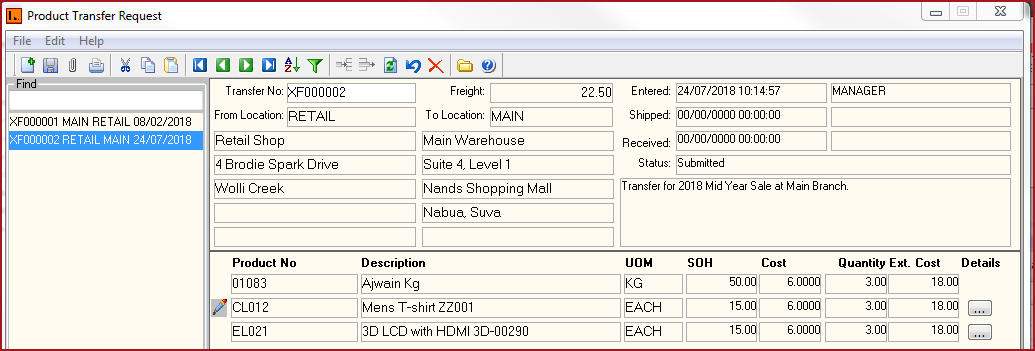
The Request menu is used to create a transfer request between locations.
Notes:
Steps to Create a Transfer Request
Report
Table 1 : Field Description for Product Transfer Request
Fields |
Description |
| Transfer No | Transfer Number is system generated. |
| From Location |
Enter the location from which the transfer is requested. Double Click in the "From Location" field and select the location or enter the location code in the field and hit tab on the keyboard. The description and address of the selected location is automatically populated. |
|
To Location |
Enter the location to which the transfer is shipped. Double Click in the "To Location" field and select the location or enter the location code in the field and hit tab on the keyboard. The description and address of the selected location is automatically populated. |
|
Freight |
This is an open text field. Users can enter the cost for shipping the transfer. This is informational only. |
| Entered | This is the date and time the "Transfer Request" was entered in the system. Date and Time is depicted from the machine. User who created the request is also updated. |
|
Shipped | This is the date time the transfer was "Shipped" from the system. Date and Time is depicted from the machine. User who created the request is also updated. |
|
Received | This is the date and time the transfer was "Received" in the system. Date and Time is depicted from the machine. User who created the request is also updated. |
| Status | The status is automated updated as "Request","Submitted", "Shipped" and "Received" as the transfer is actioned. |
| Product No | This is the product code for the item transfered. |
| Description | Description of the product is auto updated when the product code is inserted. |
| UOM | This is the unit of measure of the item. This is updated from the product setup on the Product Master. |
| SOH | SOH is the current "Stock on Hand" of the item in the transfer request. SOH is updated from the stock levels on the Product Master . SOH is extracted for the "From Location" in the transfer. |
| Cost | Cost of the item is depicted from the Product Master. |
| Quantity | Users need to enter the "Quantity" to transfer. |
| Ext Cost | Exist Cost is calculated by the system based on the transfer quantity and cost. Exist Cost = Quantity x Cost. |
| Details | The Details button is enabled for "Lot Bin" and "Product Matrix" products. |
Figure 1: Product Transfer Request